Time To Live (TTL) is a functionality of DynamoDB managed by AWS that allows you to expire items in your Dynamo tables after a timestamp you specify. When this timestamp is met, the item will be automatically deleted from the table.
In addition to this, Streams can be used to perform an action on the deleted data. Streams allow us to subscribe to events on items in our table; it works upon creation, update, or deletion of an item. Streams are not necessarily related to TTL and are configured at the table level. In this example, we will perform an action after an item is deleted by our TTL process.
In this demo we will implement a data purging process from a Dynamo table that consists of deleting read notifications using TTL, in an effort to decrease our cost for this service. When this is done, a stream will trigger a Lambda function that will log to CloudWatch the item that was just deleted.
Data purging is a mechanism that deletes old or inactive records from a database; good candidates for this are entities that grow fast in volume and are not normally consulted after a period of time. Notifications are a good example of this.
To perform this demo, we will:
- Create a DynamoDB table called ‘Notifications’
- Configure our table to use the ‘expiredAt’ field as target for the TTL configuration
- Create a Stream to react to this deletion event and trigger a Lambda from it
- Populate our table manually with records to simulate activity (this would be managed by an application layer):
- A posted notification will have no expiredAt attribute. We don’t want to delete it because it has not been read yet
- When a notification is read, we will add an attribute read set as true, and add an expiresAt attribute 2 minutes from now
Creating the Table
To create our table we will use the CLI. We will use dynamodb utility from AWS’ CLI, performing the create-table action. This will require us a few basic parameters:
- Table name: we’ll name our table ‘notifications’
- Attribute definitions: we have to at least define those that will act as partition key. Here we’ll just define uuid which we’ll use as unique identifier, and its type S (alias for String)
- Key schema: which attribute will be used as key, and whether it’s a partition key (HASH) or sort key (RANGE). We specify the attribute uuid created above and the value HASH, since this’ll be our partition key
- Provisioned throughput: we’ll use the default values
Our command looks like this:
> aws dynamodb create-table --table-name notifications --atribute-definitions AttributeName=uuid,AttributeType=S --key-schema AttributeName=uuid,KeyType=HASH --provisioned-throughput ReadCapacityUnits=5,WriteCapacityUnits=5
And if everything went well, this should be our output:
{
    "TableDescription": {
        "AttributeDefinitions": [
            {
                "AttributeName": "uuid",
                "AttributeType": "S"
            }
        ],
        "TableName": "notifications",
        "KeySchema": [
            {
                "AttributeName": "uuid",
                "KeyType": "HASH"
            }
        ],
        "TableStatus": "CREATING",
        "CreationDateTime": "2023-06-05T17:12:45.540000-03:00",
        "ProvisionedThroughput": {
            "NumberOfDecreasesToday": 0,
            "ReadCapacityUnits": 5,
            "WriteCapacityUnits": 5
        },
        "TableSizeBytes": 0,
        "ItemCount": 0,
        "TableArn": "YOUR-TABLE-ARN",
        "TableId": "YOUR-TABLE-ID",
        "DeletionProtectionEnabled": false
    }
}
Configuring TTL
As stated above, TTL allows us to expire an item in our table controlling for a given attribute we specify. For our notifications table, we are going to configure a TTL to enable it and control for the expiresAt attribute that will be inserted into our items once our notifications are read. For notifications that have not yet been read, this attribute will not exist; this assures us that only read notifications will be purged.
To do this we will use the following command, in which we run the update-time-to-live action on this table, setting it to true and passing which attribute we want to control on:
> aws dynamodb update-time-to-live --table-name notifications --time-to-live-specification Enabled=true,AttributeName=expiresAt

// Output:

{
    "TimeToLiveSpecification": {
        "Enabled": true,
        "AttributeName": "expiresAt"
    }
}
Configuring a Stream
Streams is the feature from DynamoDB that allows us to react to changes in our tables’ items on an almost-realtime basis. In our example we will react to this event by triggering a Lambda function that will log to CloudWatch the item that was just deleted.
There are other use cases for streams that might seem more useful; two examples that I like from AWS’ documentation on this are the following:
- An application automatically sends notifications to the mobile devices of all friends in a group as soon as one friend uploads a new picture.
- A new customer adds data to a DynamoDB table. This event invokes another application that sends a welcome email to the new customer.
To create a stream for our table, we will use the update-table action from the dynamodb utility. We pass it the table name, and two attributes for the stream specification: one that sets it to true, and other that tells this stream to trigger the subsequent lambda passing in the object version before it was modified.
You could also use NEW_IMAGE to receive the new item version, NEW_AND_OLD_IMAGES to receive both, or KEYS_ONLY to receive just the keys of the attributes that have changed.
> aws dynamodb update-table --table-name notifications --stream-specification StreamEnabled=true,StreamViewType=OLD_IMAGE
The output of this will be as follows:
{
    "TableDescription": {
        "AttributeDefinitions": [
            {
                "AttributeName": "uuid",
                "AttributeType": "S"
            }
        ],
        "TableName": "notifications",
        "KeySchema": [
            {
                "AttributeName": "uuid",
                "KeyType": "HASH"
            }
        ],
        "TableStatus": "UPDATING",
        "CreationDateTime": "2023-06-05T17:12:45.540000-03:00",
        "ProvisionedThroughput": {
            "NumberOfDecreasesToday": 0,
            "ReadCapacityUnits": 5,
            "WriteCapacityUnits": 5
        },
        "TableSizeBytes": 0,
        "ItemCount": 0,
        "TableArn": "YOUR-TABLE-ARN",
        "TableId": "YOUR-TABLE-ID",
        "StreamSpecification": {
            "StreamEnabled": true,
            "StreamViewType": "OLD_IMAGE"
        },
        "LatestStreamLabel": "2023-06-06T03:10:07.961",
        "LatestStreamArn": "YOUR-STREAM-ARN",
        "DeletionProtectionEnabled": false
    }
}
We want to make sure we copy the LatestStreamArn because we will use it when we create an event source mapping to tie this event with the Lambda function we are going to create next.
Creating a Lambda Function to React to the Stream
The last step before testing our setup will be to create a Lambda function to be triggered by our stream. First we need to create the role that this lambda will use, which will give it permissions to log to CloudWatch, and we’ll attach an inline policy to this role that allows our function to be triggered by DynamoDB streams. For this we will run the following commands:
// Create role

> aws iam create-role --role-name lambda-execution-role --assume-role-policy-document '{"Version": "2012-10-17","Statement": [{ "Effect": "Allow", "Principal": {"Service": "lambda.amazonaws.com"}, "Action": "sts:AssumeRole"}]}'

// Attach basic managed policy

> aws iam attach-role-policy --role-name lambda-execution-role --policy-arn arn:aws:iam::aws:policy/service-role/AWSLambdaBasicExecutionRole

// Attach inline role policy to give access to DDB streams

> aws iam put-role-policy --role-name lambda-execution-role \\
--policy-name APIAccessForDynamoDBStreams --policy-document '{
    "Version": "2012-10-17",
    "Statement": [
        {
            "Sid": "APIAccessForDynamoDBStreams",
            "Effect": "Allow",
            "Action": [
                "dynamodb:GetRecords",
                "dynamodb:GetShardIterator",
                "dynamodb:DescribeStream",
                "dynamodb:ListStreams"
            ],
            "Resource": "arn:aws:dynamodb:YOUR-REGION:YOUR-ACCOUNT-ID:table/notifications/stream/*"
        }
    ]
}'
Make sure to note down the ARN of the role you just created.
Next we will create the function itself. First we’ll create an index.js file which will simply do a console log of the data received. After that, we will compress this file into a ZIP file called function.zip.
exports.handler = (event,context) => {
	console.log(JSON.stringify(event));
}
With our Lambda function packed inside a ZIP file, we’ll go ahead and create the function with the create-function action of the lambda utility:
> aws lambda create-function --function-name dynamo-stream-target --runtime nodejs14.x --zip-file fileb://./function.zip --handler index.handler --role YOUR-ROLE-ARN
Lastly we will create an event source mapping that ties the DynamoDB stream we configured with the function we just created. Again we use the lambda utility, passing the ARN of the stream:
> aws lambda create-event-source-mapping --function-name dynamo-stream-target --event-source-arn YOUR-EVENT-SOURCE-ARN --starting-position LATEST
TTL and Streams in Action
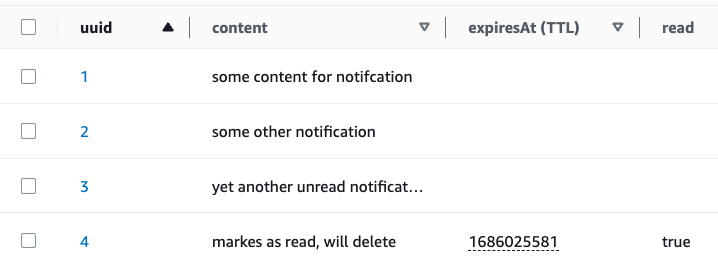
To test our TTL configuration and the stream we just created, we are going to populate our table with two different kind of items:
- Some will be notifications that have been added but not read, and therefore don’t have an expiresAt attribute
- Other will be notifications where read = true, for which we’ll add an expiresAt attribute set 2 minutes from now (for demo purposes)
In a real world example, our application layer will have the logic that handles this functionality. We would create notifications without the expiresAt attribute because they have not yet been read. Then, when a PUT is performed to one of them marking them as read, we’d add this attribute with an epoch value of perhaps 6 months from now.
As you can see, I added 4 items to our table, one of which has two extra attributes marking the notification as read, and setting an expiresAt two minutes from when I’m writing this. You can see the UI itself is showing the attribute key as TTL. Note the expiresAt type must be numeric and its value must be expressed in epoch format.
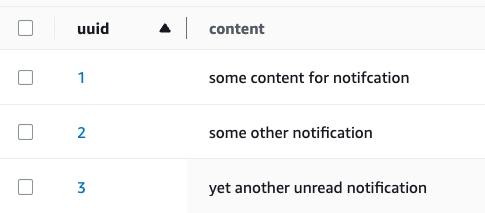
After a while, I can see this item is now missing from my table. It was automatically deleted from it by AWS. Keep in mind that the TTL process is done on a best-effort basis, meaning that AWS cannot guarantee that the item will be deleted exactly at the time you specify; as per AWS’ documentation, it might take up to 48 hours.
Lastly, to check if the stream we put in place worked correctly, we can head to CloudWatch Logs, open the log group for the Lambda function we created (in my case /aws/lambda/dynamo-stream-target), and look inside to see if the data received from the stream was logged correctly. If everything went well, you should something like this:
{
    "Records": [
        {
            "eventID": "ea08789da44e5a25c5061954aea82a0c",
            "eventName": "REMOVE",
            "eventVersion": "1.1",
            "eventSource": "aws:dynamodb",
            "awsRegion": "us-east-1",
            "dynamodb": {
                "ApproximateCreationDateTime": 1686026164,
                "Keys": {
                    "uuid": {
                        "S": "4"
                    }
                },
                "OldImage": {
                    "read": {
                        "BOOL": true
                    },
                    "uuid": {
                        "S": "4"
                    },
                    "content": {
                        "S": "markes as read, will delete"
                    },
                    "expiresAt": {
                        "N": "1686025581"
                    }
                },
                "SequenceNumber": "1252100000000011042968719",
                "SizeBytes": 64,
                "StreamViewType": "OLD_IMAGE"
            },
            "userIdentity": {
                "principalId": "dynamodb.amazonaws.com",
                "type": "Service"
            },
            "eventSourceARN": "YOUR-SOURCE-ARN"
        }
    ]
}
As you can see, our function was triggered with information from the item that was deleted by TTL, including its content, the action performed on it, as well as who performed said action.
 Daniel Clas